
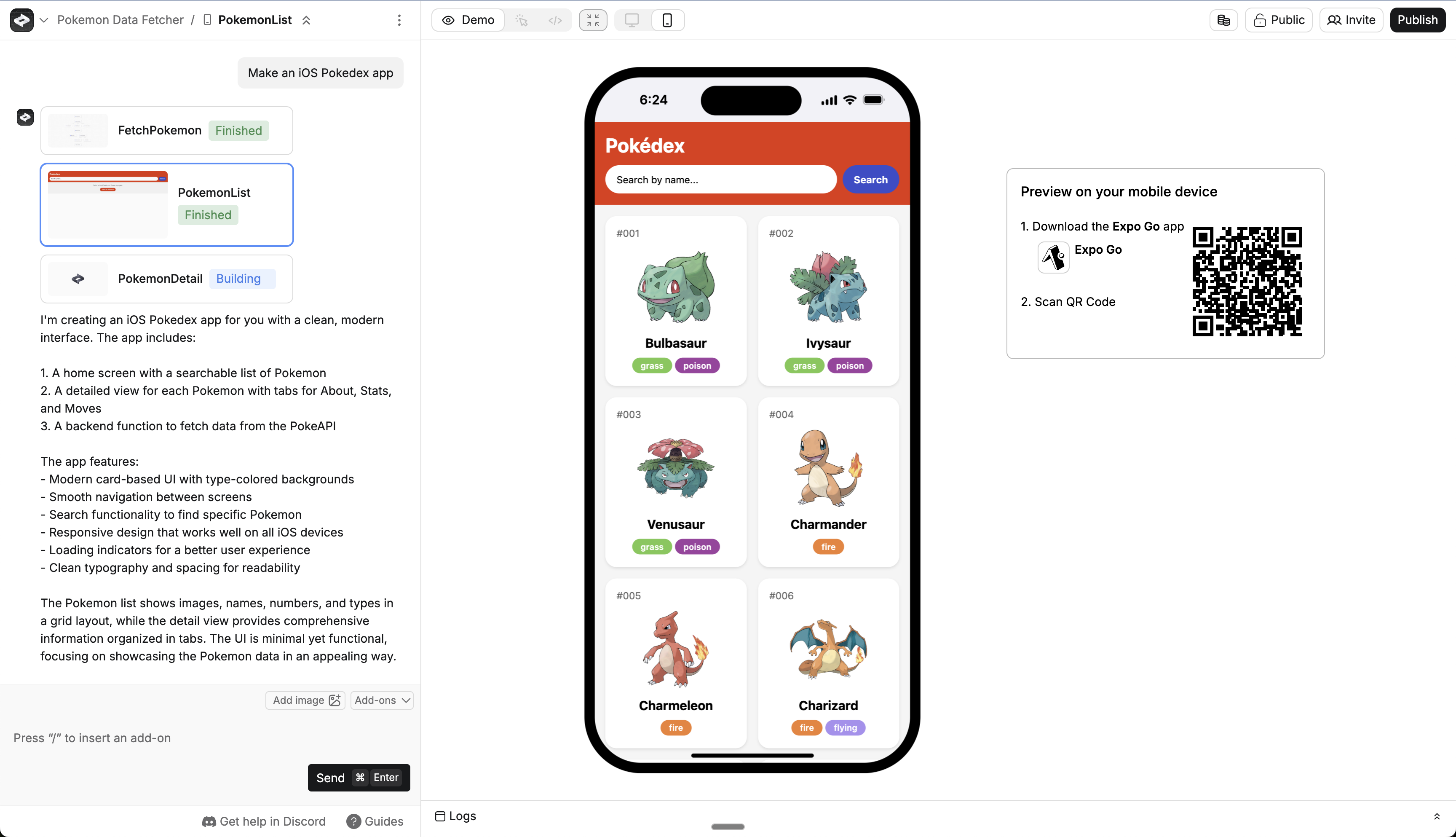
How to build
Prompt Anything to make a mobile app. It builds your app in mobile pages and adds more functionality as you go. You can add more pages by prompting or from the logo menu.1
Get a Pro account
You need a Pro account to build mobile apps.
2
Start a new project
Create a fresh project from your dashboard. For a full overview of how to build with Anything, see the Essentials guide.
3
Create your mobile app
Prompt Anything to make a mobile app. You can say things like “Make an iOS app that…” or “Make an Android app that…” or “Make a mobile app that…”Anything generates your first mobile screen. You’ll know it’s working if you see the mobile preview.
This is a web preview, so features that rely on a device (like location or camera) might not work. See Preview on your device to test on your phone.
4
Preview on your device
Download Expo Go and preview your app on a physical device. If you’re on iPhone, install it from the App Store.You’ll need to connect your Expo account in the builder before scanning the QR code. See Preview on your device for the full steps.
5
Add mobile features
Request specific mobile capabilities:Anything supports mobile-specific capabilities. For a deeper dive, read Device capabilities.
6
7
Test and refine
Preview on your device and make improvements through conversation.Be specific about issues so Anything can fix the underlying code:For debugging techniques and strategies, see the testing guide.
8
Set your app icon
Head into Project Settings to upload an icon and loading screen for your app.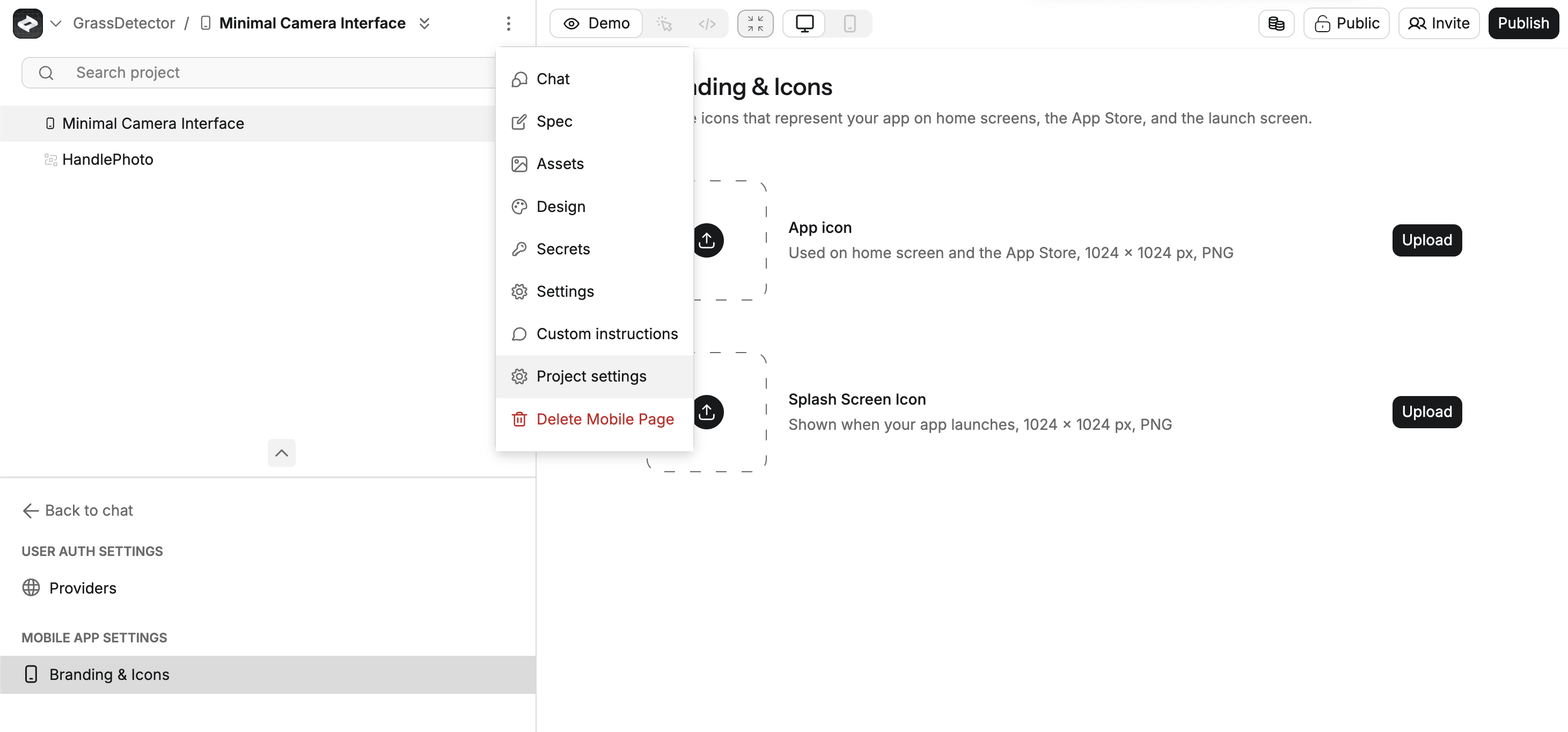
9
Publish to the app stores
When you’re ready, follow the steps in Publishing to app stores to publish to Apple’s App Store or Google’s Play Store.
Preview on your device
The web builder shows a preview of your app as you chat. But to test the full experience, preview on your device. Some features that need device capabilities only work in preview.1
Start a new mobile project
Start a new mobile project with a prompt or go to an existing one.
2
Connect your Expo account
In the Connect Expo Go panel next to the preview, paste an access token from your Expo account. If you don’t have one, sign up at expo.dev and create a personal access token. See Connect your Expo account for full details.
3
Wait for the QR code
After connecting, Anything builds your device preview. This might take a few moments. If it takes longer than a minute, let us know at hello@anything.com.
4
Scan the QR code
Sign in to the same Expo account in Expo Go on your phone, then scan the QR code with your camera.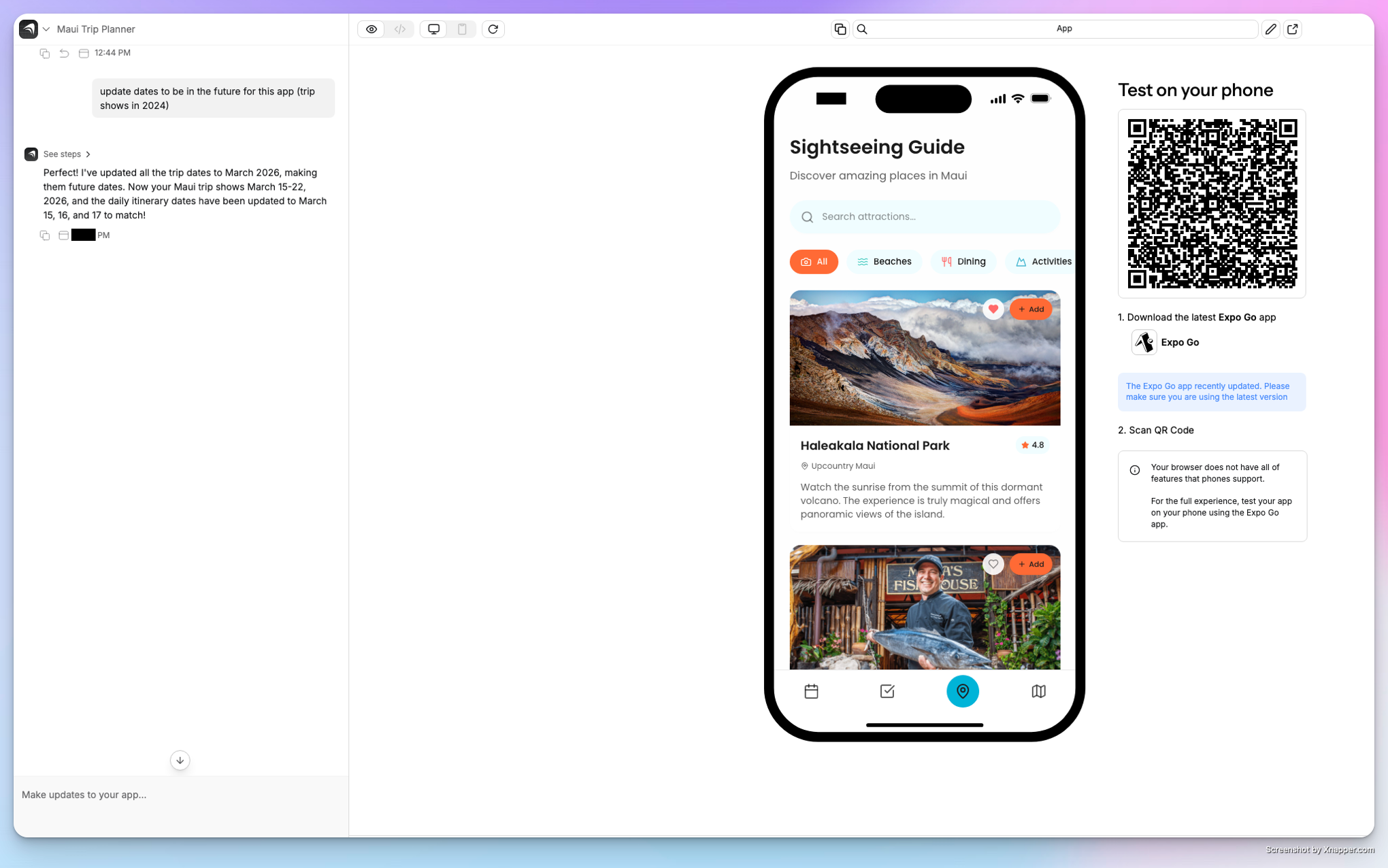
5
Test in Expo Go
Your app opens in Expo Go. Try it out.
6
Make updates in Anything
Continue building your app by chatting with Anything in the web interface.
7
See latest changes
Close and reopen Expo Go to see latest changes. It should auto-update with the latest version of your app. If you need to force it, scan the QR code again.
Related pages
Device capabilities
Camera, location, and more
Submit to App Store
Submit to the App Store
Submit to Play Store
Submit to the Play Store
Testing guide
Debug and test your app
Mobile overview
Back to mobile docs