Publish via TestFlight
Prepare your app
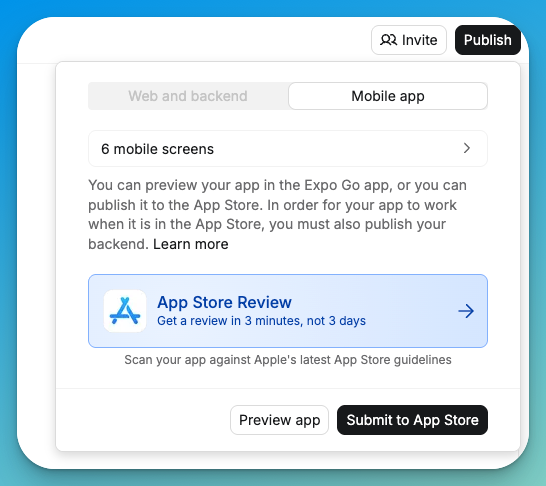
Click Publish in your mobile project and select App Store Review to start the automated review system.
Make sure you have an Apple Developer Account and verify it’s active.Gather these assets before you start:

- App icon (1024x1024px)
- App description
- Screenshots for 13-inch iPad and 6.5-inch iPhone displays
- Privacy policy URL (use Termly to generate one)
- A support page in your project
Submit your app
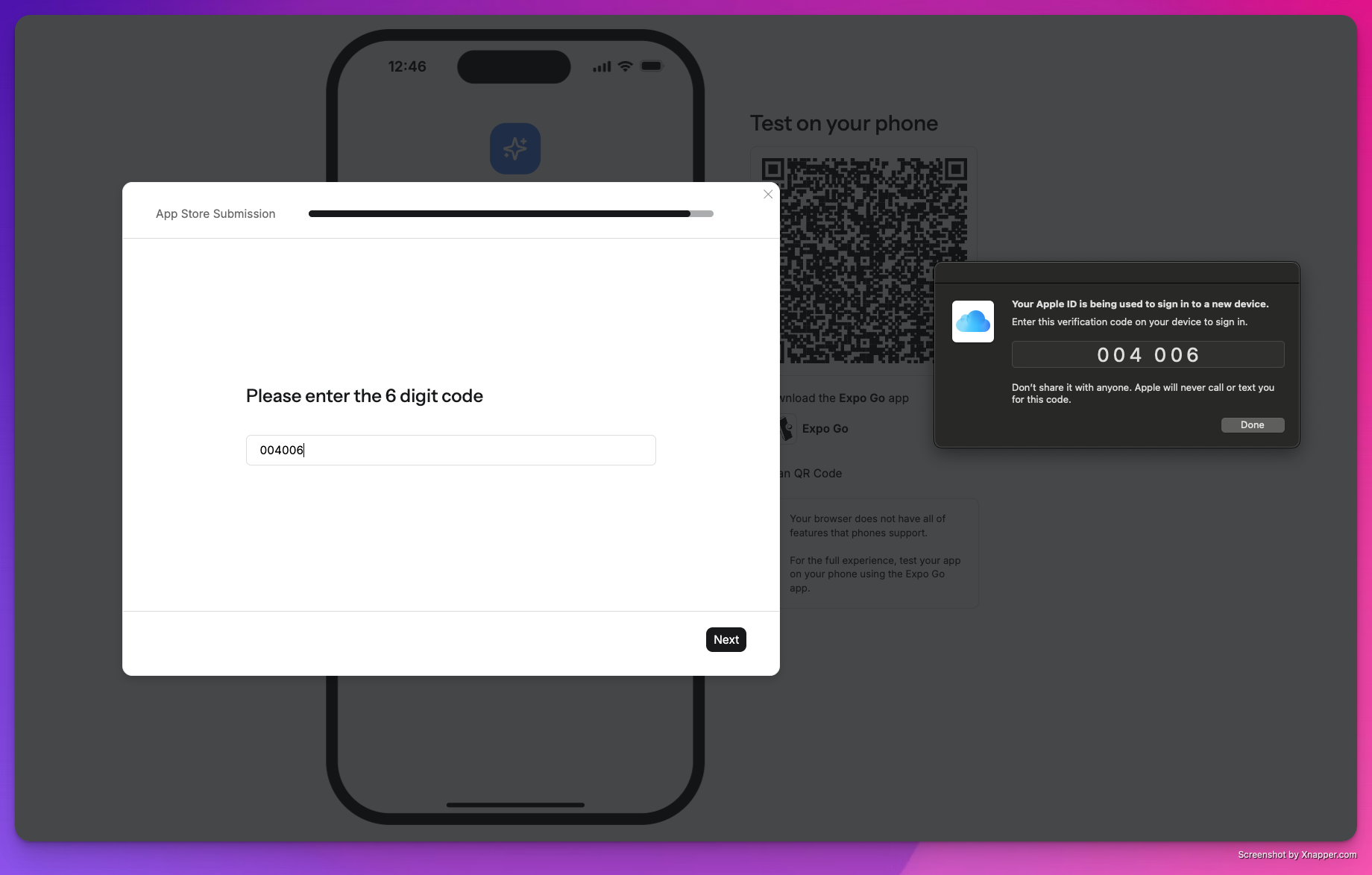
Click Publish and select Submit to App Store.Enter your Apple ID credentials, then complete verification. Text verification sends a code to your phone on record. Device authentication prompts a security code on any Apple device signed in with your Apple ID.
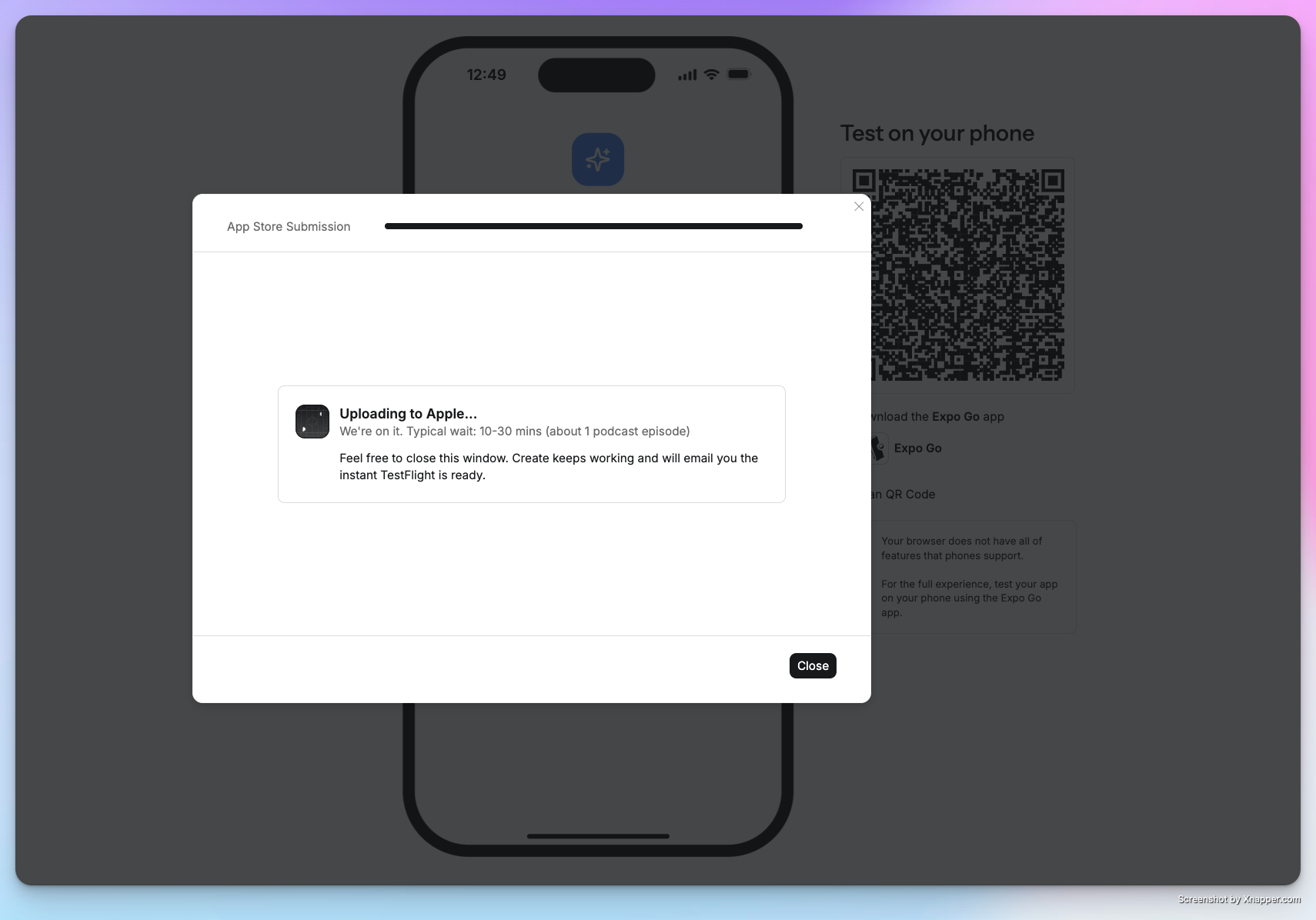
Anything handles the build and uploads it to App Store Connect. This usually takes 30 minutes or less.


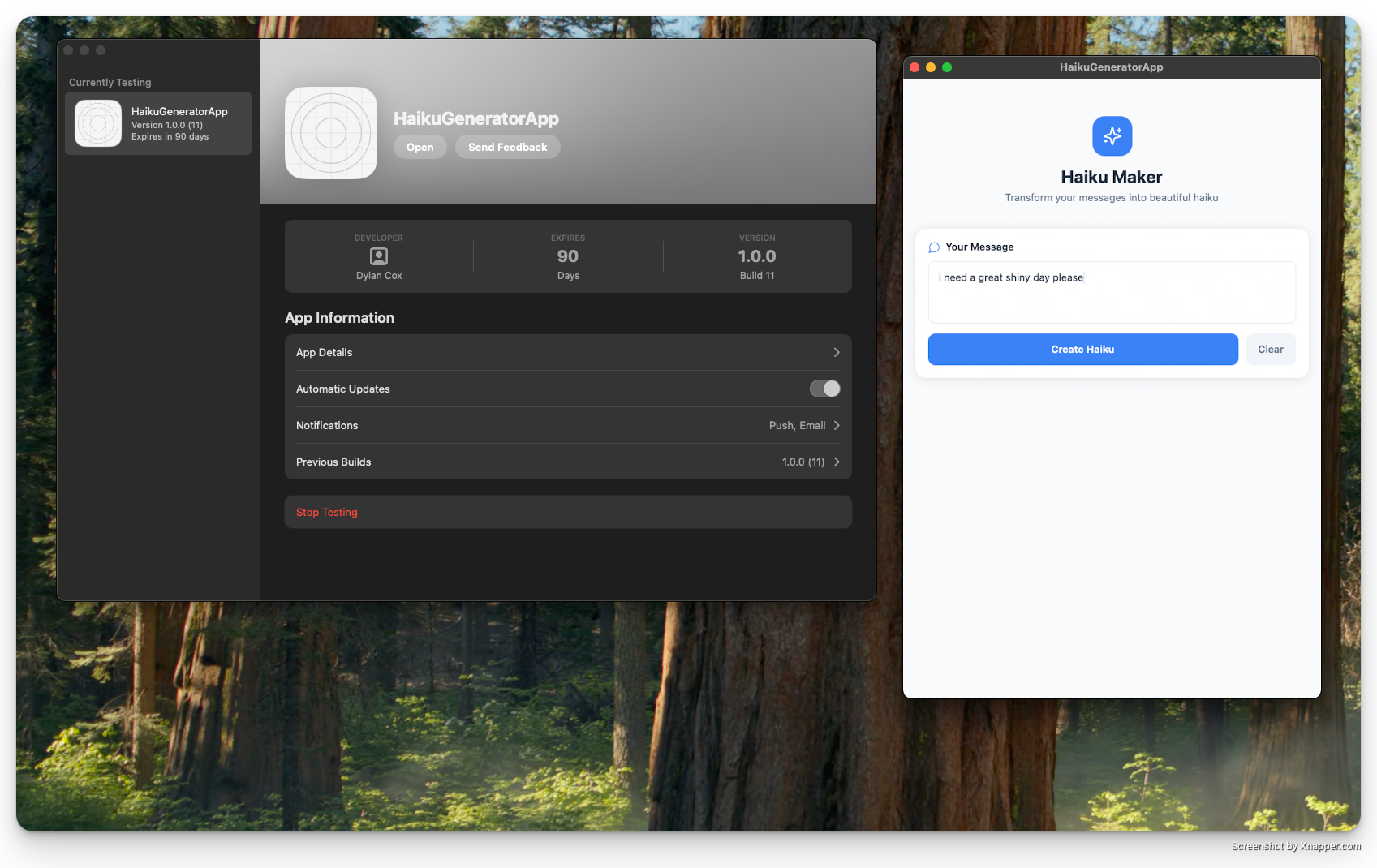
Install via TestFlight
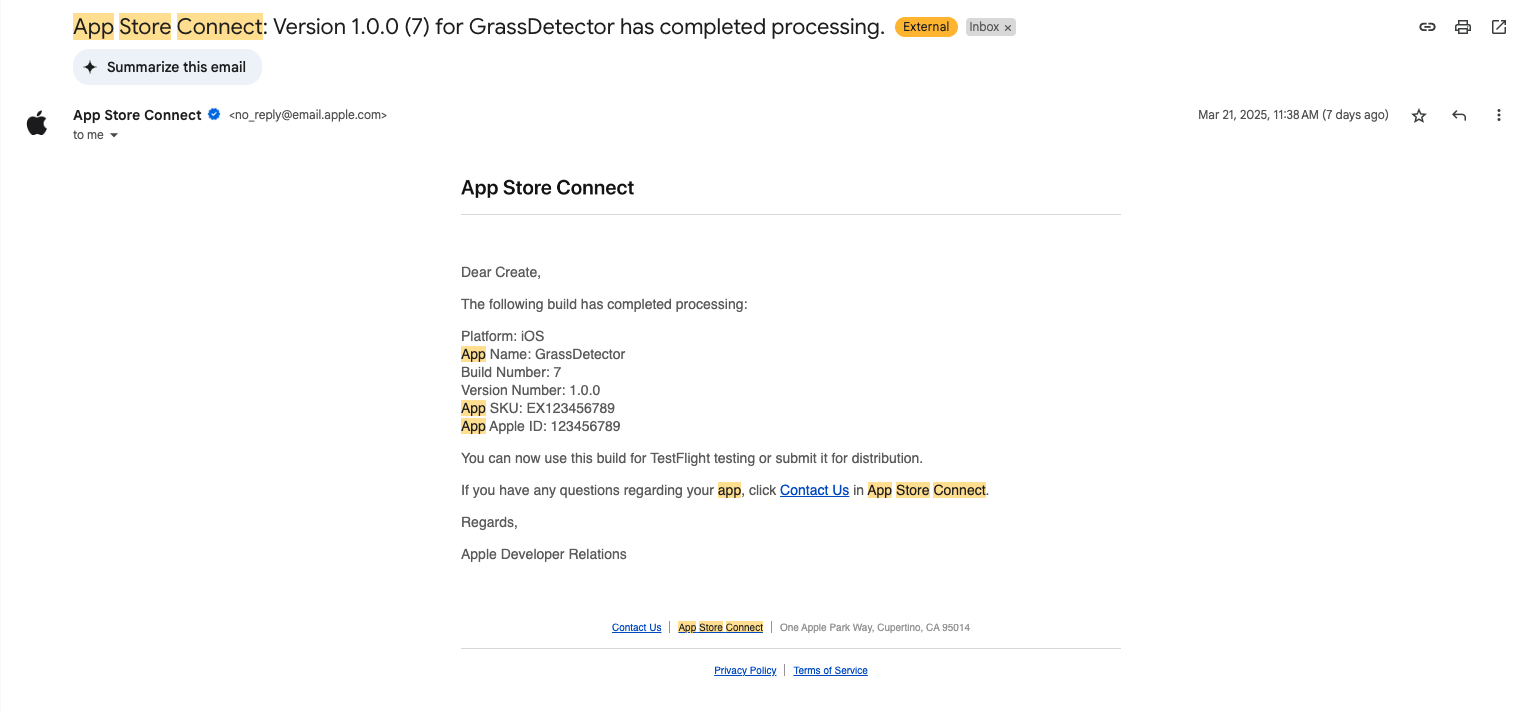
Download TestFlight from the App Store and log in with your developer account.Check your email for an invitation from App Store Connect with an invite code. Redeem it in TestFlight. You only need to do this once per app.
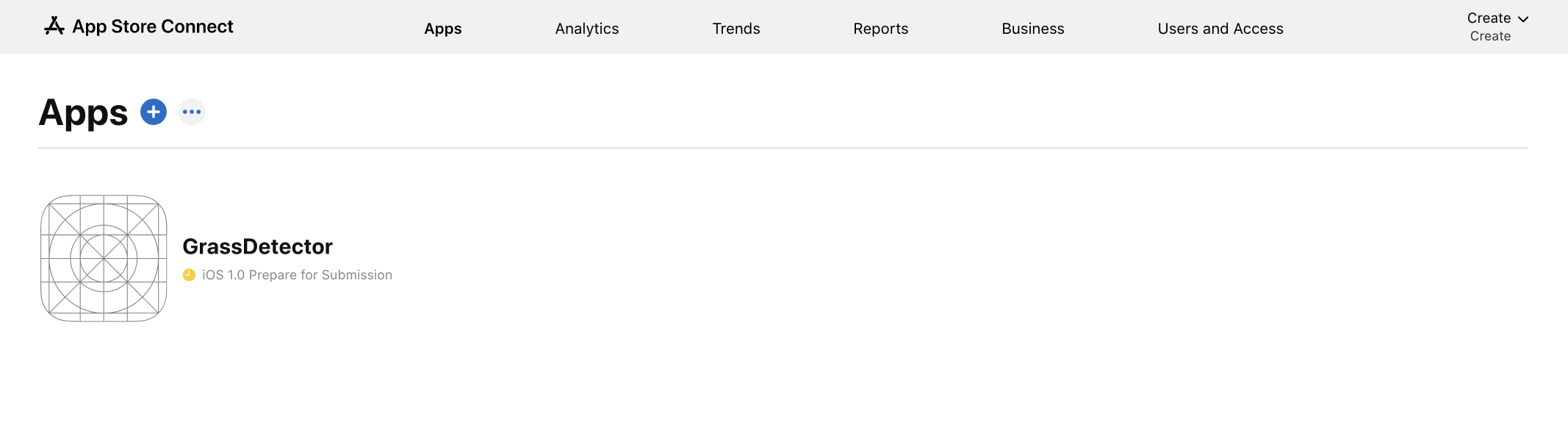
Visit App Store Connect to view and manage your app.
No iPhone? TestFlight also works on recent Mac laptops.


Complete Apple requirements
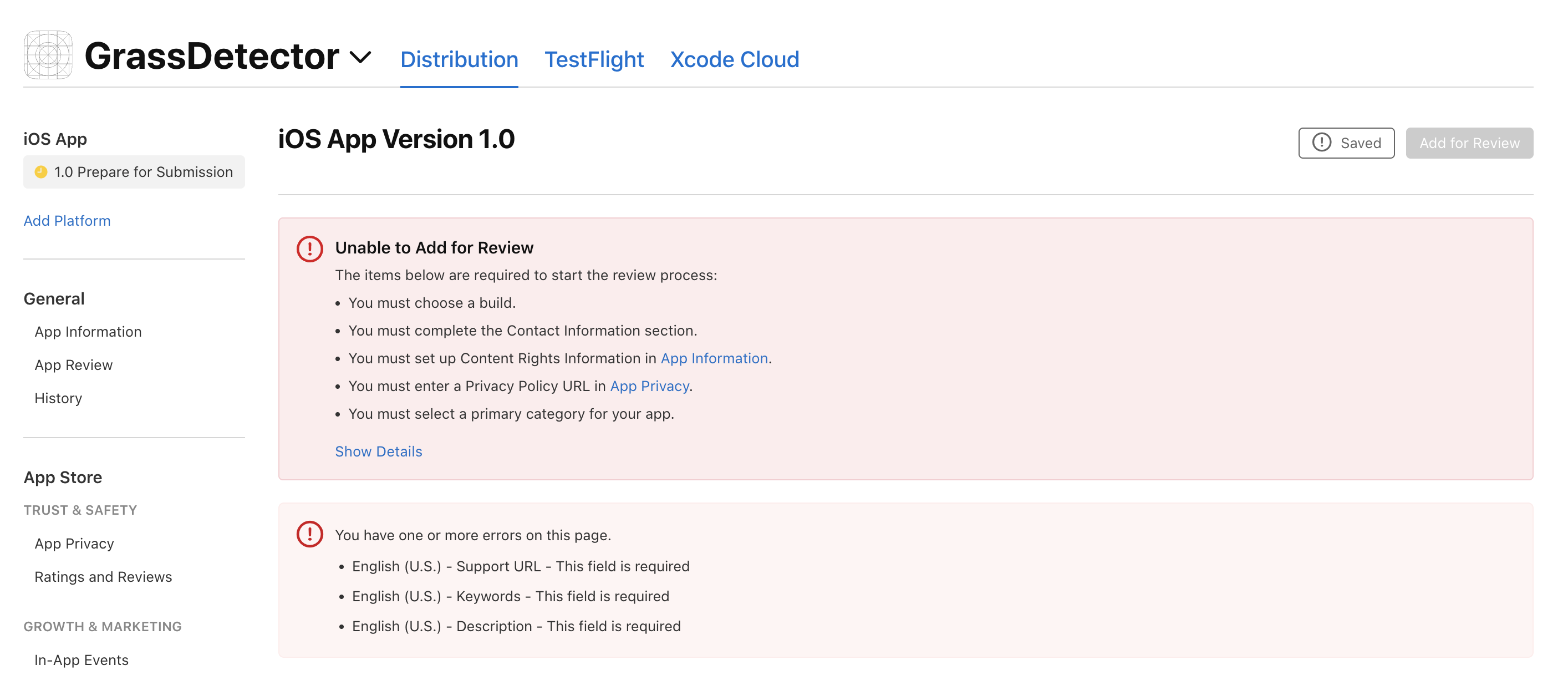
Apple requires several items before your app can be reviewed. Work through each section in App Store Connect.
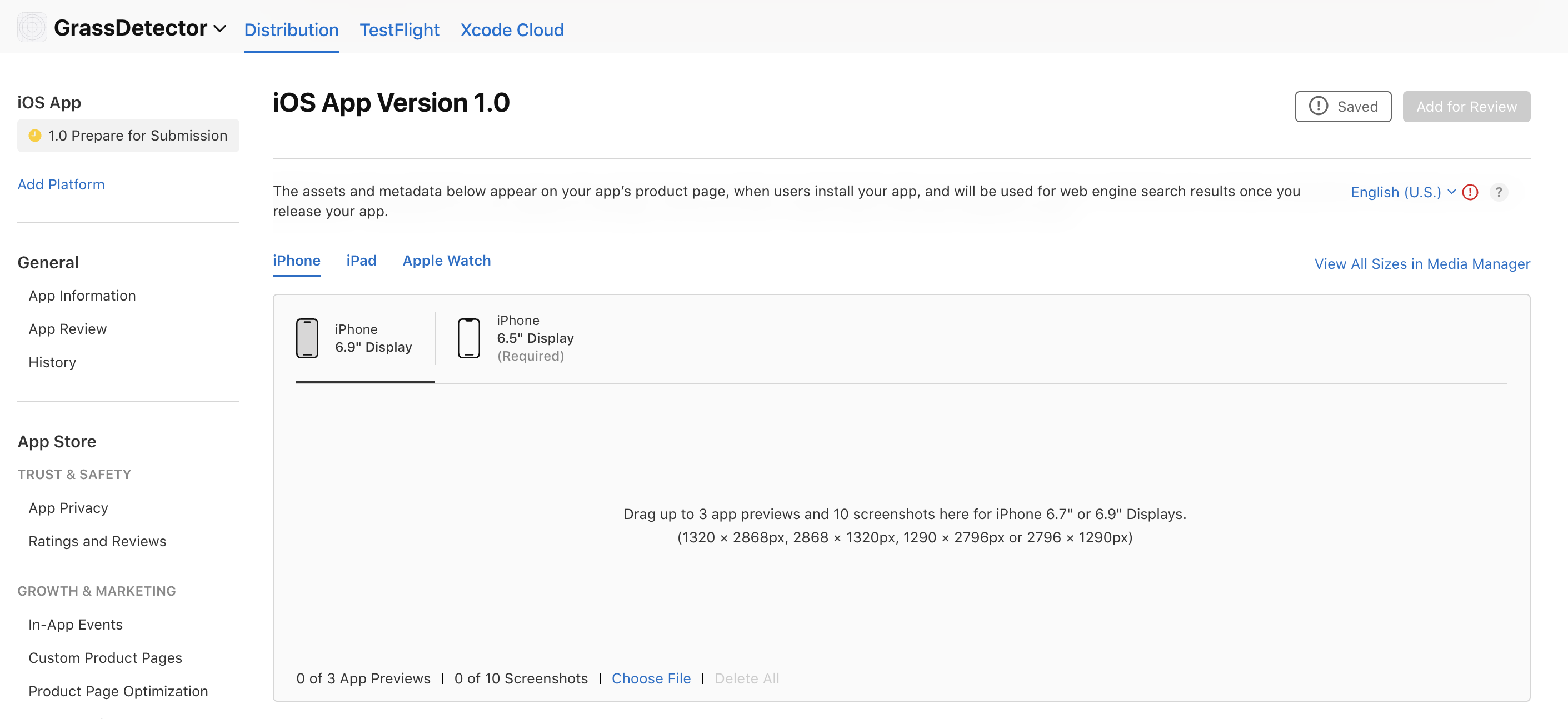
Upload screenshots
In the Prepare for Submission tab, scroll to the screenshot section and upload:
- iPhone screenshots (6.5” and 5.5” displays)
- iPad screenshots (12.9” and 11” displays)
- Screenshots showing key features, high quality and properly sized
App information
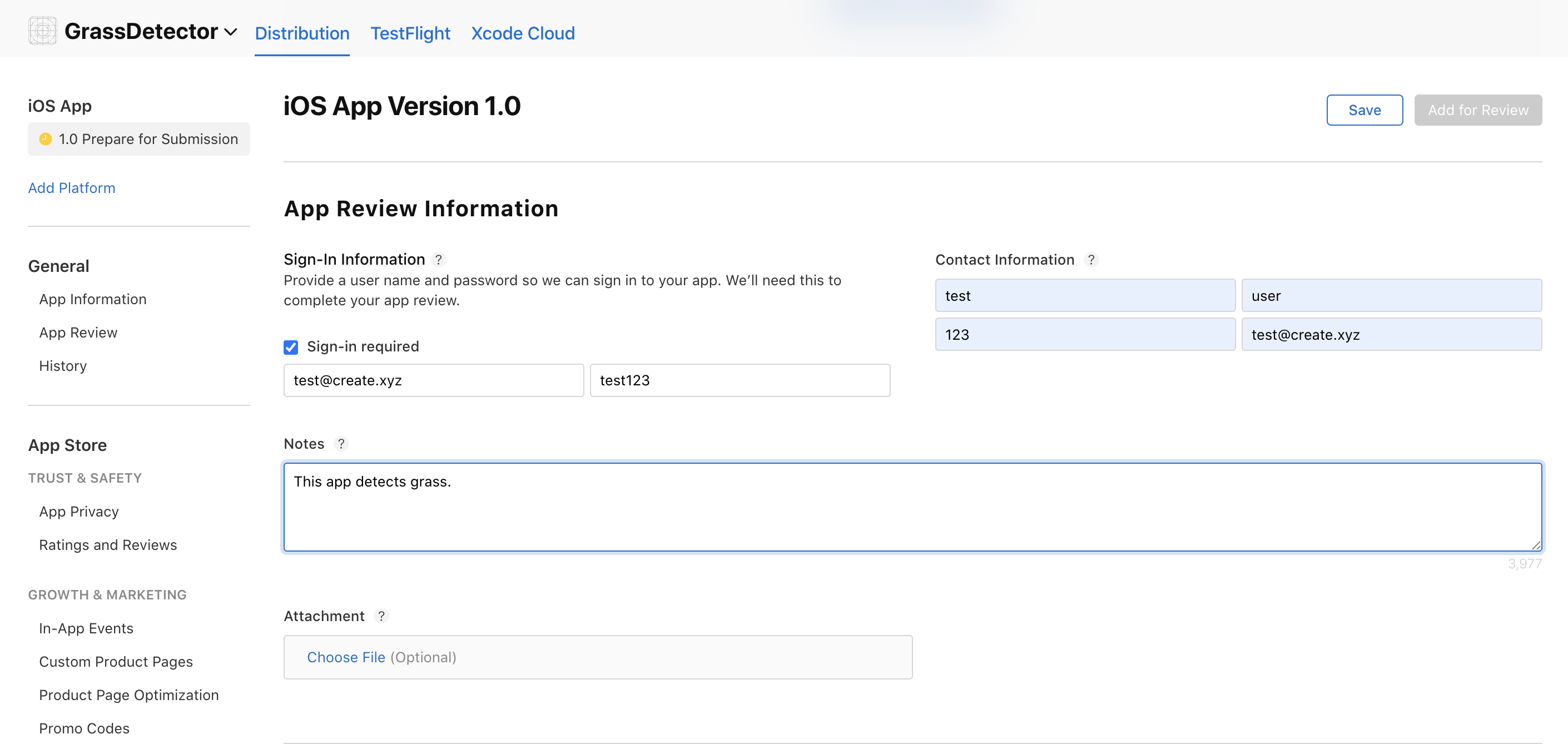
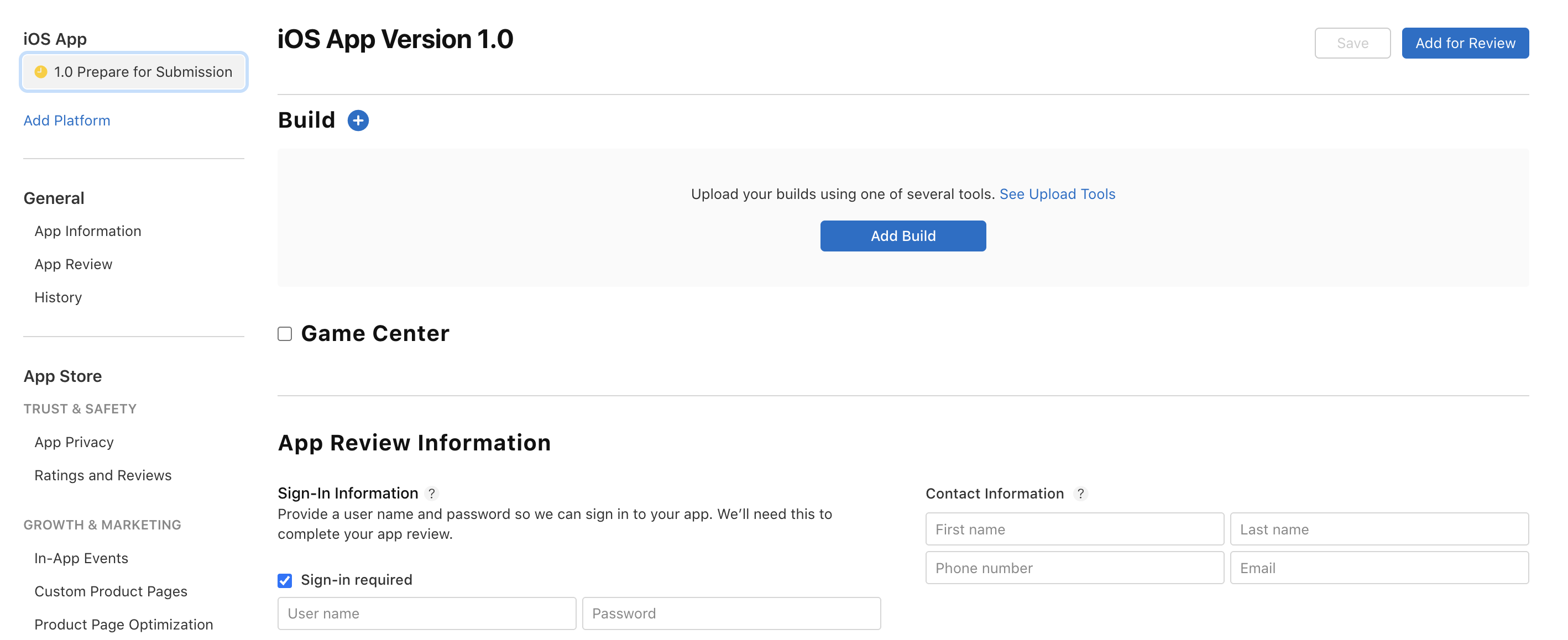
Fill out the Contact Information section. If your app requires sign-in, provide a test account for Apple’s review team.

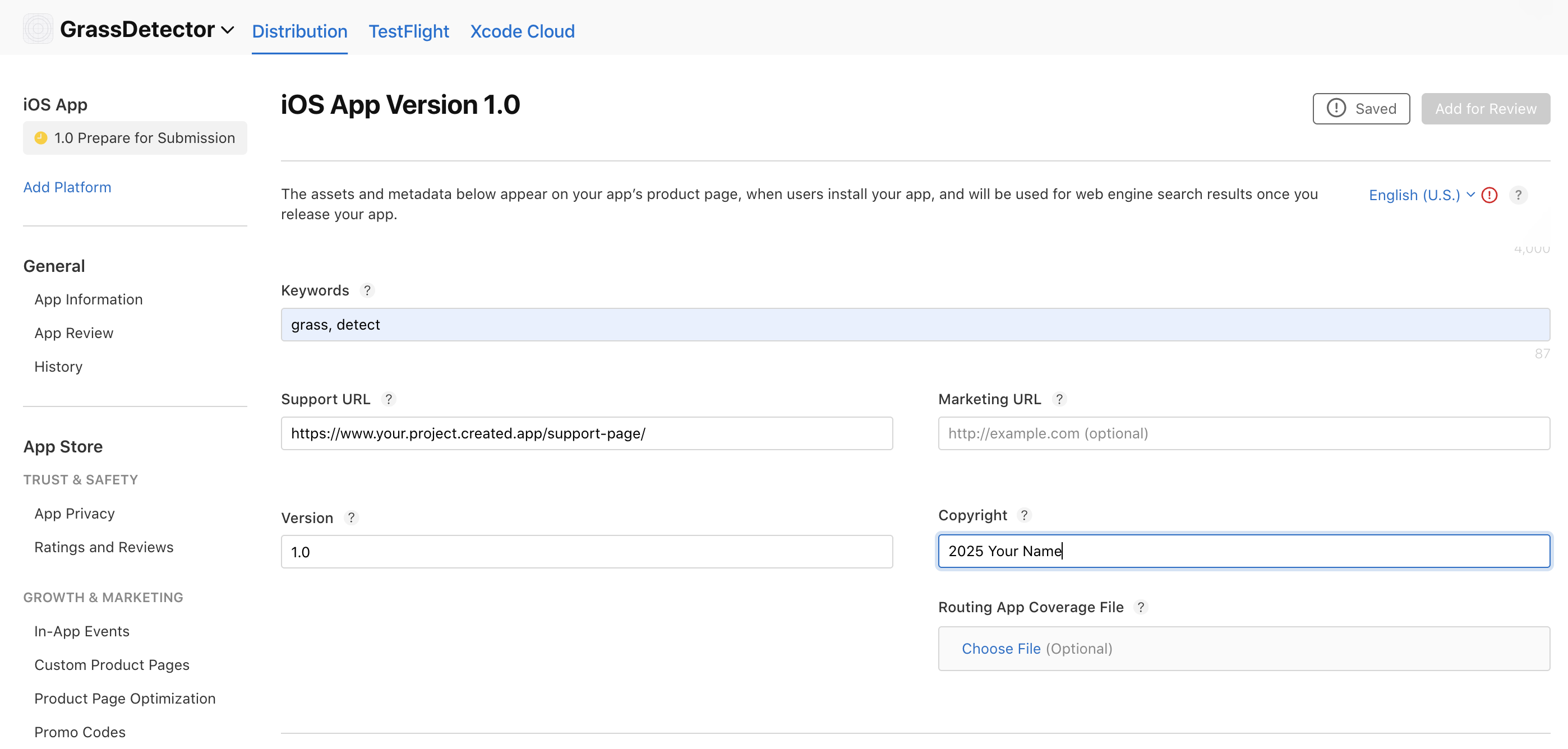
General information
- Add your support URL from your Anything project
- Declare copyright information
- Add relevant keywords
- Select an appropriate category
Choose a build
In the Prepare for Submission tab, scroll to the Build section and select the version you want to submit. The latest build appears at the top.

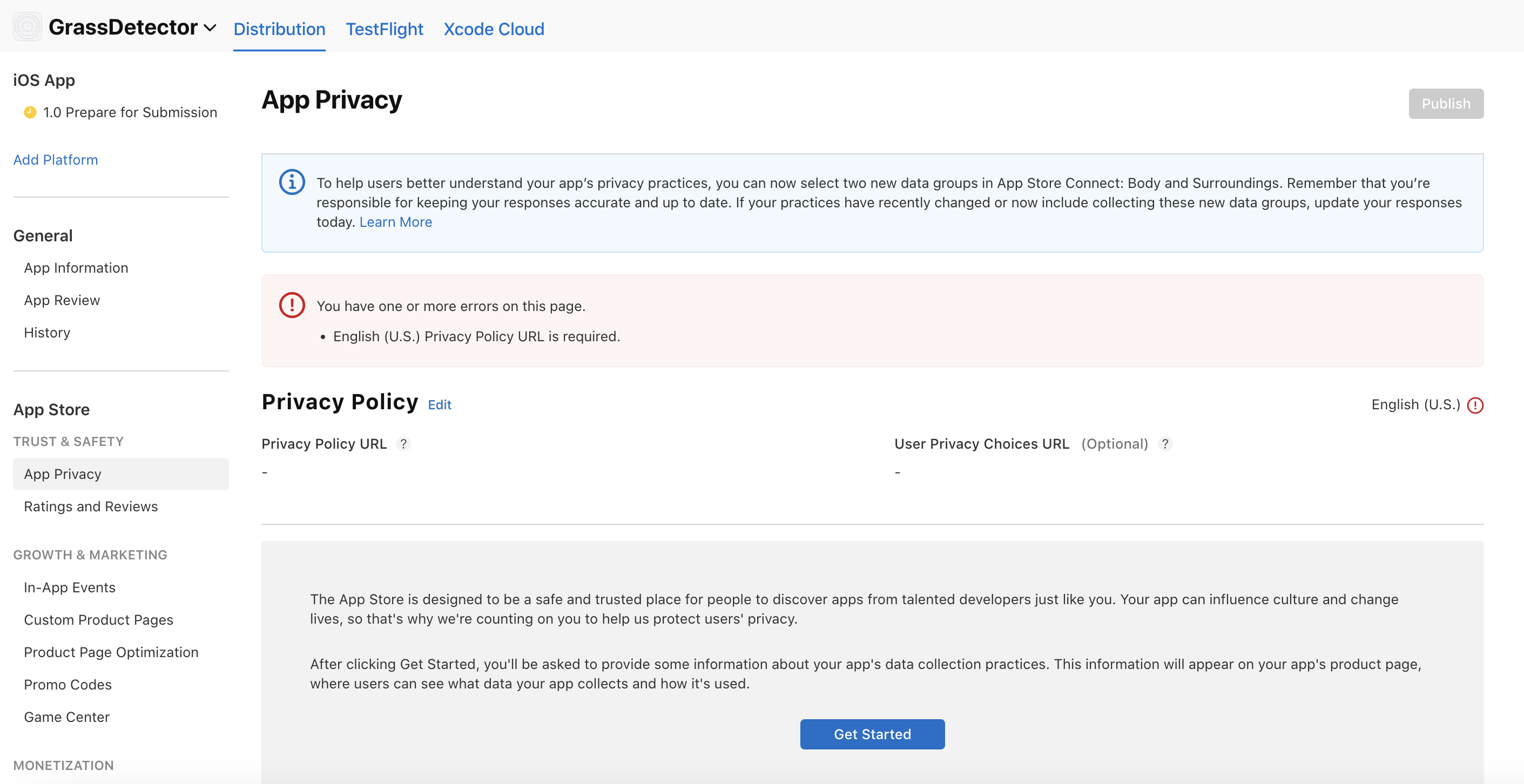
Privacy policy and data
- Create a privacy policy URL using Termly
- Complete the data collection review
- Declare any third-party data collection
- Specify data usage and storage
Pricing and distribution
- Set your app price (free or paid)
- Configure in-app purchases if applicable
- Set availability by region
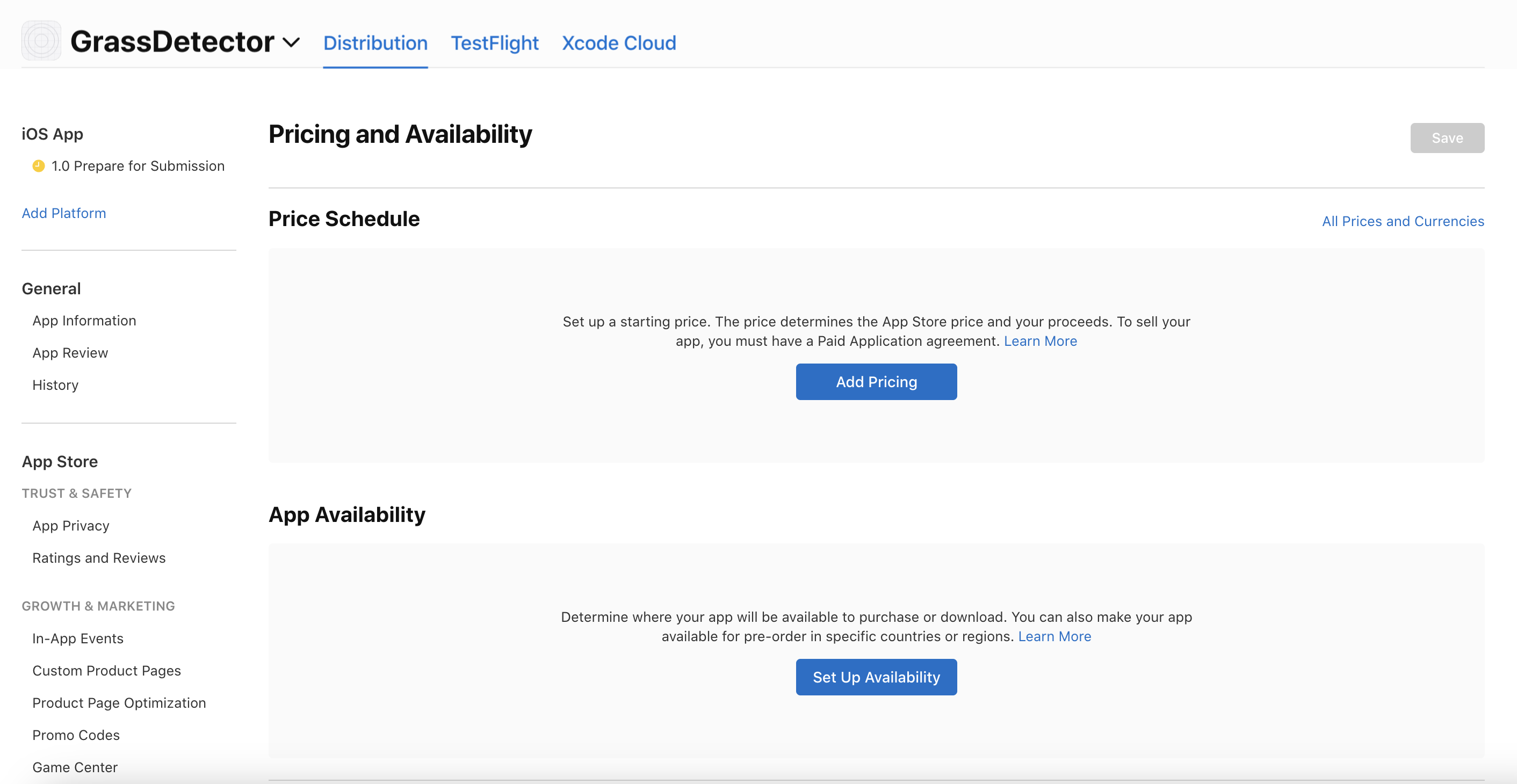
Apple requires you to submit your country’s tax form to earn revenue. Learn more here.

Troubleshooting
Build not showing in TestFlight
Builds take up to 30 minutes to appear in TestFlight. Check that your Apple Developer account is active and fully processed — Apple sends a “Welcome to The Developer Program” email when it’s ready. Make sure all agreements, banking, and tax info are complete in App Store Connect. If your account was recently created, Apple may still be processing it (this typically takes 3 days). See Verify your Apple Developer account for a full checklist.
Stuck on upload
Stuck on upload
If the upload screen hasn’t progressed after 30 minutes, close the publish dialog and try again. Make sure you have a stable internet connection. If it keeps failing, email hello@createanything.com with your build URL.
Verification code not arriving
Apple sends codes to the phone number or device linked to your Apple ID, not your email. Check all Apple devices signed into your account. If you chose text verification, check the phone number on file with Apple.
Common App Store rejections
Apple reviews every app. Here are the most common rejection reasons and how to fix them.Generic permission descriptions (Guideline 5.1.1)
Generic permission descriptions (Guideline 5.1.1)
Apple requires specific descriptions for camera, location, and other permissions. They reject generic text like “We need access to your camera.” Explain exactly why your app needs the permission and what data you collect. Email hello@createanything.com with your build URL and the custom permission text you want applied.
Missing privacy policy
Every App Store submission needs a privacy policy URL. Use Termly to generate one for free, then add it in App Store Connect under App Privacy.
Incomplete metadata
Incomplete metadata
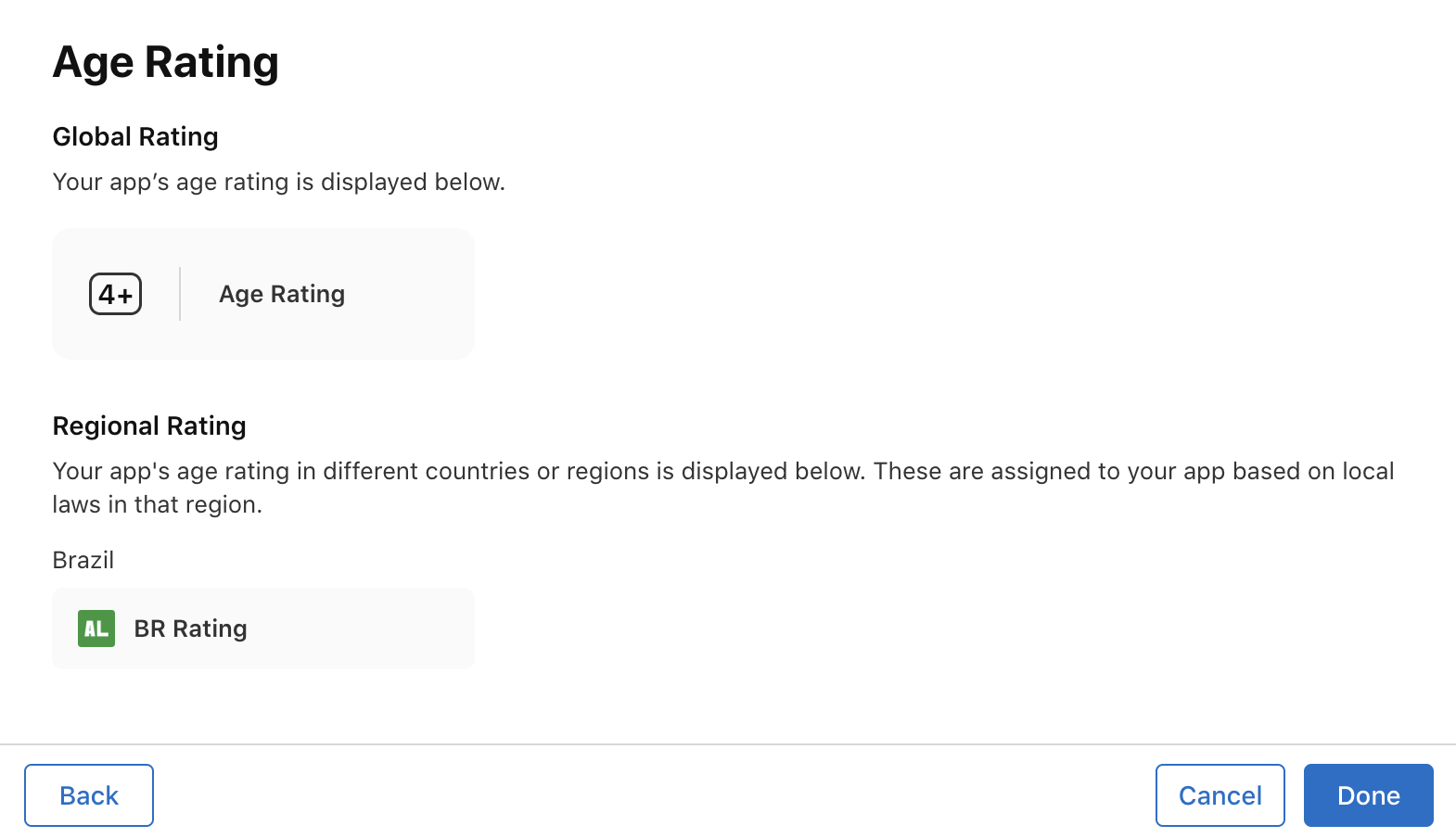
Make sure all required fields are filled: app description, screenshots for all required device sizes, contact info, age rating, and a support URL. Apple won’t review incomplete submissions. See the step-by-step checklist above.