
Before you start
Make sure you have:An Anything project with User Accounts turned on
Overview
Enable User Accounts
Turn on user accounts
Enable Email/Password
Enabled by default
Add sign-in UI
Customize the login form
Test flow
Make sure login works
Turn on / off
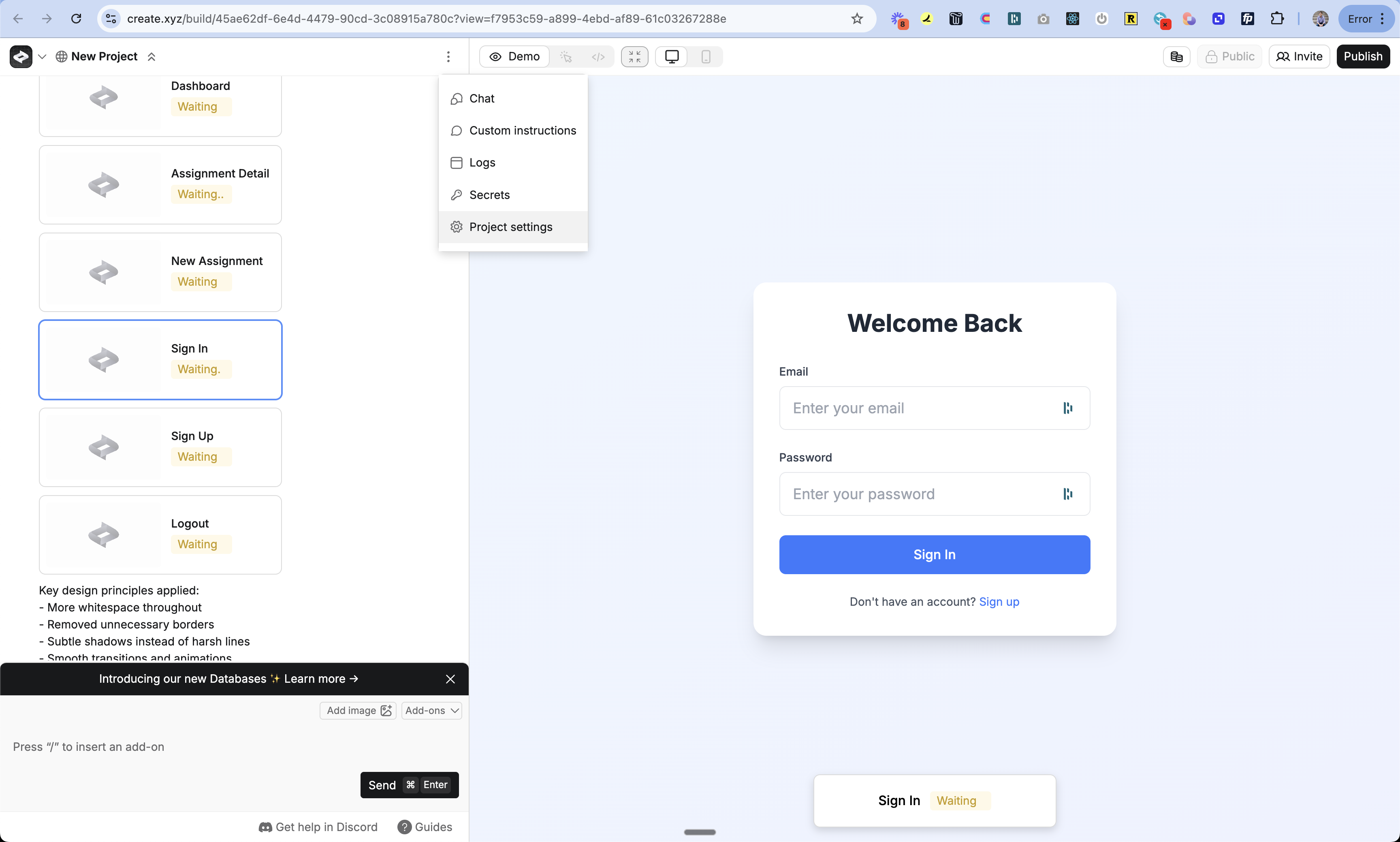
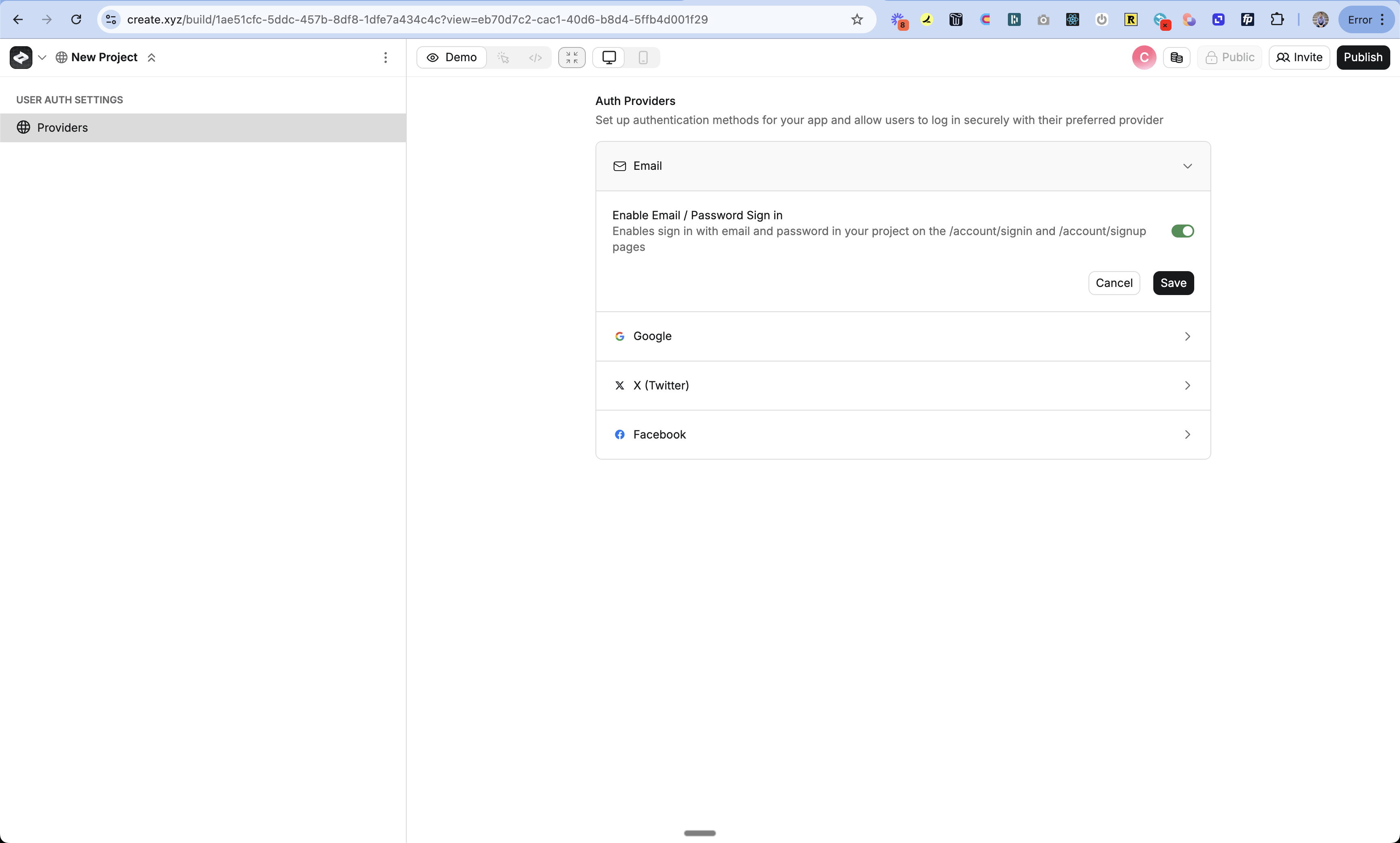
Enable Email/Password Sign In
- Navigate to the Authentication section
- Find Email/Password Sign In toggle
- Make sure it’s turned on (or off if you want to remove it)
- Tap “Save”
Add Sign In UI
- Return to the chat
- Prompt Anything with “Add email/password sign in” or “Remove email/password sign in”
- Anything will update your sign-in pages automatically
How It Works
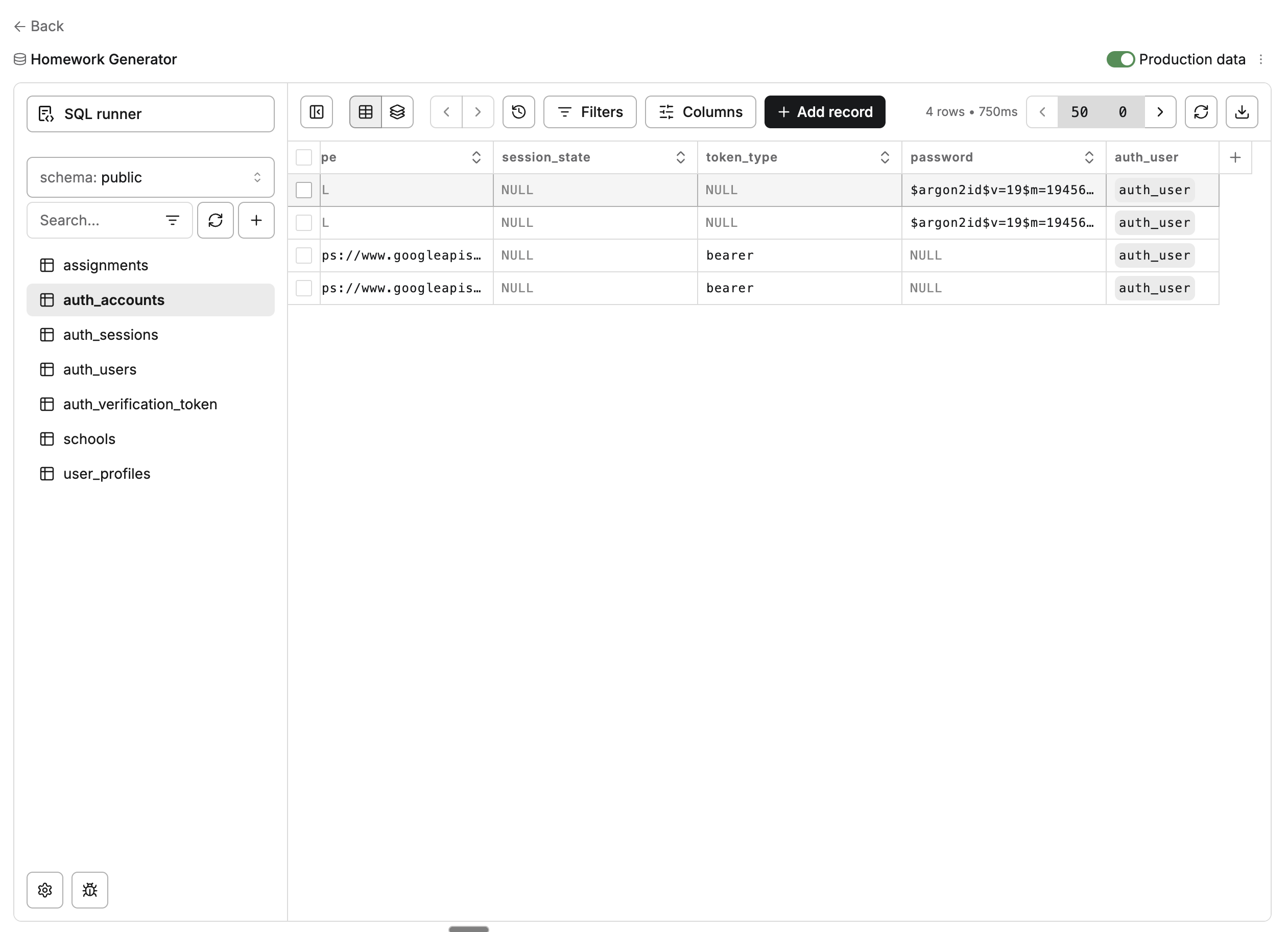
When users sign up with email/password:- The password is securely hashed using bcrypt before storage
-
The email and hashed password are stored in your database:
- Email in
auth_users.email - Hashed password in
auth_accounts.password - Account type set to “credentials”
- Email in
-
On sign in, Anything:
- Hashes the provided password
- Compares it to the stored hash
- Creates a secure session if they match
Customizing the Form
You can customize the email/password form through chat:Testing
- Publish your changes
- Open your app in a new incognito window
- Go to the sign in page
- Try signing up with email/password
- Check the auth_users table to see your new user
Troubleshooting
Can't see the email/password form
Can't see the email/password form
- Check if User Accounts is turned on
- Make sure Email/Password Sign In is enabled in Project Settings
- Try publishing your changes again
- Clear your browser data and try in incognito mode
Sign in not working
Sign in not working
- Double check the email address is correct
- Make sure you’re using the right password
- Try resetting your password (see FAQ below)
- Check the auth_users and auth_accounts tables
FAQ
Can I reset passwords?
Can I reset passwords?
You can manually reset passwords in the database. We’re adding support for automated workflows soon. For now:
- Delete the user from the database
- Ask them to sign up again
- Optionally update the new user’s ID to match the old ID to maintain data connections
Can I customize password requirements?
Can I customize password requirements?
Yes! Just prompt Anything with your desired requirements like:
“Make passwords require at least 8 characters with one number”It will add validation to the password field.
Can I add additional fields to sign up?
Can I add additional fields to sign up?
Yes! Prompt Anything to add fields like name or phone number to the sign up form.